





Practical social media planner notion setup for beginners
A social media planner notion setup is a simple workspace in Notion that helps you plan, organize, and track content in one place. By combining a content calendar, post database, and workflow tracker, you can manage ideas, publishing dates, and performance without switching tools. The key is building a minimal system first, then adding automation and templates only when needed.
Table Of Content
- Quick Answer
- Why use Notion for social media planning?
- How to build a social media planner notion from scratch
- Step 1 — Create a Content Database
- Step 2 — Add Views for Workflow Clarity
- Step 3 — Build a Post Template
- Step 4 — Create a Weekly Planning Dashboard
- Step 5 — Add Lightweight Tracking Metrics
- Step-by-Step Implementation Plan (Beginner Friendly)
- Common Mistakes When Setting Up a Notion Planner
- 1. Overbuilding the system
- 2. Splitting platforms into separate databases
- 3. Planning months ahead without validation
- 4. Ignoring workflow status
- 5. Tracking too many metrics early
- FAQ
- What is a social media planner notion template?
- Is Notion good for social media planning?
- How do beginners organize social media content in Notion?
- Can Notion replace social media scheduling tools?
- How often should I update my Notion content planner?
- Final Thoughts
Quick Answer
A social media planner notion setup works best when it includes:
- One content database
- Status workflow (idea → draft → scheduled → posted)
- Calendar view for publishing dates
- Template for repeatable post creation
- Basic metrics tracking
Start simple. Expand later.
Why use Notion for social media planning?
Notion acts as a central operating system for content. Instead of juggling spreadsheets, notes apps, and scheduling tools, everything lives in one workspace.
Short answer: Notion reduces planning friction and improves consistency.
Benefits include:
- Flexible database structure
- Visual calendar and board views
- Reusable post templates
- Easy collaboration with teams
- Low cost compared to social media tools
For beginners, the real advantage is clarity. You see exactly what’s planned, what’s missing, and what’s publishing next.
How to build a social media planner notion from scratch
This is the core setup. Keep it minimal and functional.
Step 1 — Create a Content Database
Create a new database table called Social Media Content.
Add these properties:
- Platform (Select: Instagram, LinkedIn, TikTok, etc.)
- Status (Idea, Draft, Ready, Scheduled, Posted)
- Publish Date (Date field)
- Content Type (Post, Reel, Story, Carousel)
- Owner (Person)
- Link/Asset (URL or file)
Short answer: One database should hold every post idea and asset.
Avoid splitting platforms into separate databases at the start.
Step 2 — Add Views for Workflow Clarity
Create multiple views of the same database.
Recommended views:
1. Board View (Kanban)
Group by Status to see workflow stages.
2. Calendar View
Shows publishing schedule at a glance.
3. Table View
Best for bulk editing and filtering.
Short answer: Multiple views turn one database into a full planning system.
Step 3 — Build a Post Template
Templates save time and enforce consistency.
Inside the database, create a template called New Post Template.
Include sections like:
- Hook ideas
- Caption draft
- Visual concept
- Hashtags
- CTA
- Performance notes
This prevents starting from a blank page every time.
Short answer: Templates reduce creation time and improve quality.
Step 4 — Create a Weekly Planning Dashboard
Now build a top-level page called Social Media Dashboard.
Add:
- Linked database filtered to This Week
- Calendar view of upcoming posts
- Section for new content ideas
- Quick links to assets or brand guidelines
This becomes your control center.
Short answer: Dashboards reduce decision fatigue and speed planning.
Step 5 — Add Lightweight Tracking Metrics
Avoid complex analytics early on.
Add simple fields:
- Engagement Score (number)
- Reach Category (Low / Medium / High)
- Repurpose? (Checkbox)
This lets you identify what works without overcomplication.
Short answer: Track patterns, not perfection.
Notion Social Media Planner Template Free: Amazing Resource
Step-by-Step Implementation Plan (Beginner Friendly)
Follow this order to avoid overwhelm:
- Create one content database
- Add core properties (platform, status, date)
- Create calendar and board views
- Build one reusable post template
- Create a dashboard page
- Start planning one week ahead only
- Review and improve after two weeks
Short answer: Build → use → improve. Never build everything first.
Common Mistakes When Setting Up a Notion Planner
1. Overbuilding the system
Many beginners add automation, formulas, and dashboards immediately.
Result: complexity and abandonment.
Fix: Start with one database and one template.
2. Splitting platforms into separate databases
This makes scheduling and tracking harder.
Fix: Use one database with a Platform property.
3. Planning months ahead without validation
You don’t know what content works yet.
Fix: Plan only 1–2 weeks in advance initially.
4. Ignoring workflow status
Without statuses, posts get lost.
Fix: Always include Idea → Draft → Ready → Posted stages.
5. Tracking too many metrics early
Analytics overload slows execution.
Fix: Track engagement trends, not detailed analytics.
FAQ
What is a social media planner notion template?
A social media planner notion template is a reusable database layout that helps you organize posts, schedule content, and track performance inside Notion.
Is Notion good for social media planning?
Yes. Notion is excellent for planning workflows, calendars, and content ideas, especially for individuals and small teams. It offers flexibility without high tool costs.
How do beginners organize social media content in Notion?
Beginners should use one content database, assign statuses, add a calendar view, and create a reusable post template. This keeps planning simple and scalable.
Can Notion replace social media scheduling tools?
Notion helps plan and organize content but does not publish posts automatically. It works best alongside scheduling tools like Buffer or native platform schedulers.
How often should I update my Notion content planner?
Update it weekly. Review performance, move posts through workflow stages, and plan the next batch of content.
Short answer: Weekly updates keep the system effective.
Final Thoughts
A social media planner notion setup works best when it’s simple, actionable, and built around your workflow—not someone else’s template. Start with one database, one dashboard, and one template. Once the system supports consistent publishing, you can expand it with automation, analytics, or team collaboration features.
The goal isn’t complexity. The goal is consistent, organized execution.
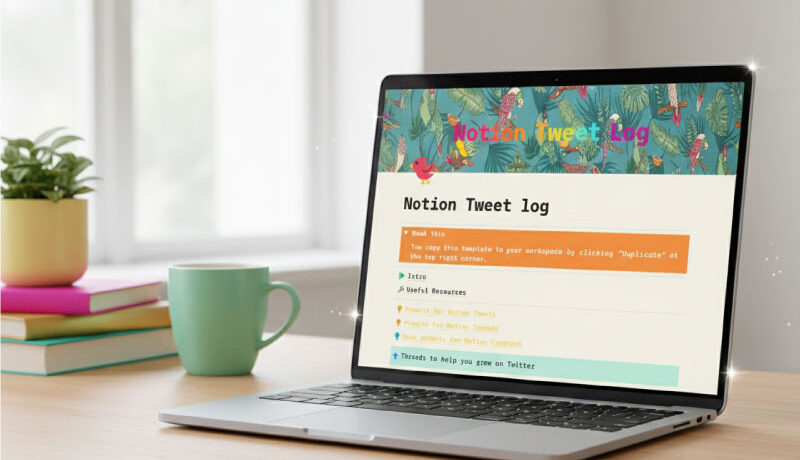
📌 Get started quickly with this flexible template (Notion Tweet log). Edit the content, adjust the details, and personalize it for your business.